
How to Upload an IPA for iOS Release: A Practical Guide to Transporter and altool Uploads and Troubleshooting
After Application Loader was retired, iOS developers can use Transporter or altool to upload IPAs. This article provides pre-checks, two upload procedures, a common error troubleshooting table, and a post-upload checklist.
If you are responsible for iOS build submissions, you will notice that the once-familiar Application Loader is no longer provided with Xcode. The tool has changed and the upload entry point has changed, but the core process has not: prepare the archive artifact, submit it through Xcode, Transporter, or a command-line tool, then return to App Store Connect to check the processing status of the build version. This article is aimed at developers who submit builds daily and explains the upload steps and troubleshooting approach for Transporter and altool. It does not involve account information and does not promise review results.
Confirm Three Things Before Uploading
No matter which method you use to submit, check the following three items before uploading. This can save a great deal of back-and-forth troubleshooting:
- The Bundle ID matches the App recorded in App Store Connect;
- The distribution certificate and provisioning profile are valid, and the provisioning profile contains the certificate used for the current build;
- The version number and build number are unique and increasing, and the build number cannot be reused under the same version.
Many upload errors are not tool problems, but mismatches in signing or version information. It is recommended to first confirm these items in Xcode Organizer, then choose an upload method.
Method One: Graphical Upload with Transporter
Transporter is a standalone upload tool provided by Apple, suitable for teams and individual developers who do not rely on the command line.
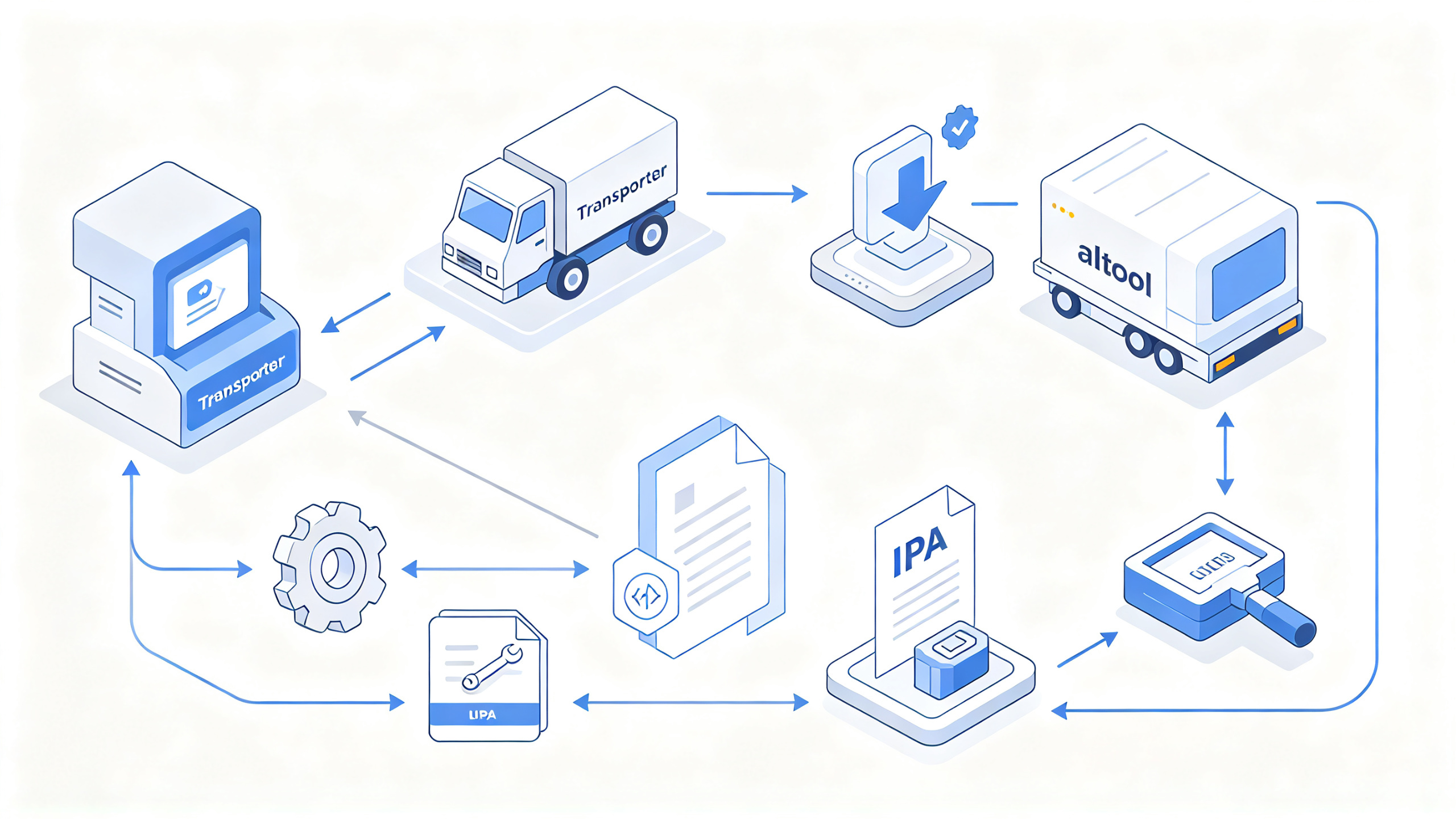
- Install Transporter from the App Store and sign in with your Apple ID.
- Drag the IPA exported after archiving in Xcode into the window, or click the add button to select the file.
- After confirming that the App information, version number, and build number displayed in the window are correct, click Deliver.
- Wait for the progress to complete, then go to the Activity or Build Versions area in App Store Connect to check the processing status.
If it gets stuck at validating or directly reports an error, first check network connectivity and whether the IPA is complete. Do not close the window during the upload process.
Method Two: Validate and Upload with the Command-Line altool
altool has long been used for command-line uploads and validation. Apple later recommended migrating to the current command-line tool, but many teams still use it for build validation and uploads. A common usage is to validate first and then upload in a CI script:
xcrun altool --validate-app -f YourApp.ipa \
  -t ios --apiKey YOUR_KEY --apiIssuer YOUR_ISSUER
Replace YOUR_KEY and YOUR_ISSUER with your own key identifier, and do not write them into a public repository. After validation passes, perform the upload:
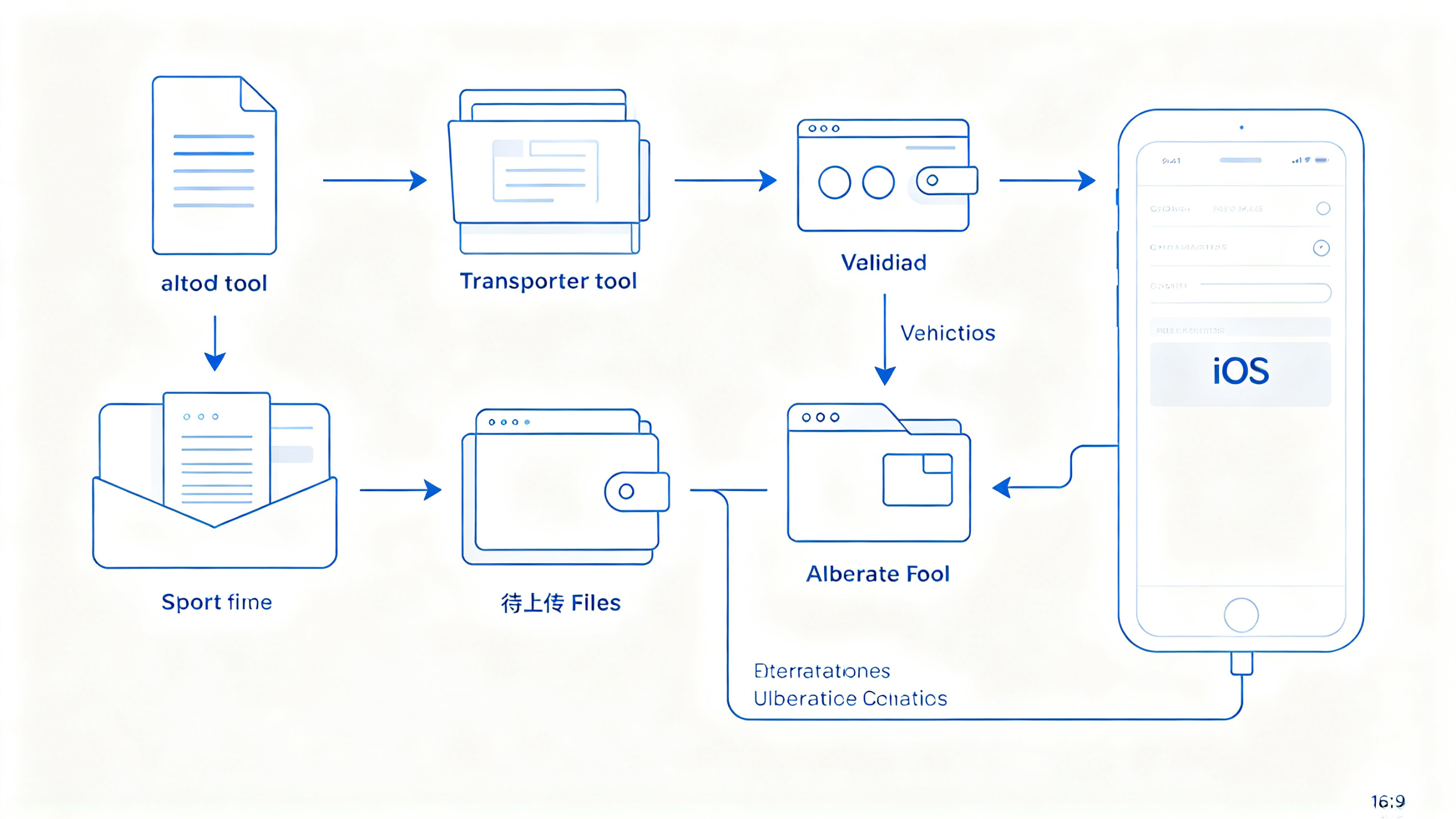
xcrun altool --upload-app -f YourApp.ipa \
  -t ios --apiKey YOUR_KEY --apiIssuer YOUR_ISSUER
If it prompts that the tool is deprecated, you can migrate this script to the command-line tool currently recommended by Apple. The logic is still to validate first, then upload. During team collaboration, certificates, P12 files, Bundle IDs, and provisioning profiles are easily scattered among different people. It is recommended to manage them centrally to reduce situations where certificates do not match the project.
Common Errors and Troubleshooting Order
| Symptom | Check First |
|---|---|
| Indicates missing icons or metadata | Whether the App information in App Store Connect is completely filled in |
| Invalid signature | Whether the certificate has expired and whether the provisioning profile includes the current certificate |
| Duplicate build number | Whether the Build number has already been used under this version |
| Upload interrupted | Network stability, IPA file size, and disk space |
Post-upload checklist
- The corresponding build version can be seen in App Store Connect, and its status changes from Processing to Available;
- The version number and build number match those submitted;
- If automatic notifications are triggered, confirm that the email or in-app message has been received;
- When testing is needed, add the build version to a TestFlight testing group;
- Before submitting for review, recheck compliance information such as privacy, subscriptions, and accounts.
Tools will change, but the process and troubleshooting logic will not. Treat pre-checks, choosing an upload method, reading logs, and confirming in the backend as fixed actions, and the differences between Transporter and altool will no longer be an obstacle.