Packaging iOS on Windows with Adobe AIR and Publishing to the App Store: Complete Workflow and Pitfall Guide
This article explains in detail the complete workflow for packaging iOS apps with Adobe AIR in a Windows environment and publishing them, including common issues such as the cross-platform principles of adt, JDK version compatibility, and SDK path settings, to help developers who only have a Windows computer successfully complete compilation, signing, and submission.
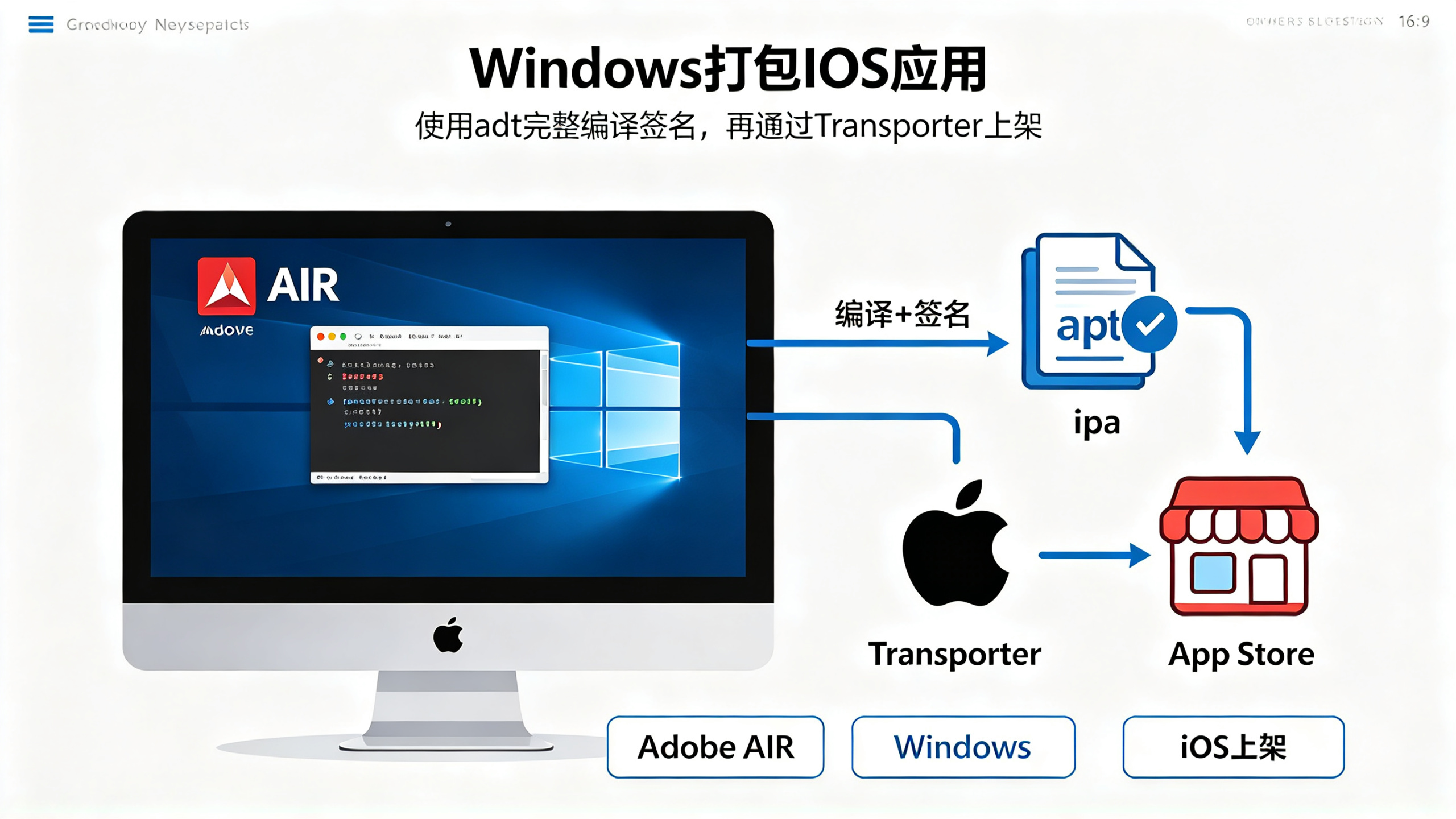
Let me start with the conclusion: this technical route is genuinely feasible. Starting from a certain version, Adobe AIR's official toolchain has fully supported completing iOS app packaging in a Windows environment, and the final output is an .ipa file, which, together with Apple's official Transporter or Application Loader, can complete the publishing workflow. This solution is particularly suitable for developers who "only have a Windows computer, have no Mac environment, but have built cross-platform games or utility apps with AIR." I have done this hands-on many times, and together with team colleagues I have pushed two apps to the App Store using this workflow.
But one thing must be made clear in advance: the "packaging" mentioned here is complete compilation plus signing, not an intermediate product, and not cloud packaging. Your development, compilation, signing, and export must be completed coherently within the same environment; any configuration problem in between will directly block you, so I will write the entire process below in the order of my actual operations, including the pitfalls that are easy to hit at each step.
1. The underlying mechanism of Adobe AIR packaging for iOS: what you are actually doing
Many people initially mistakenly believe that AIR can only make iOS packages on macOS, but that is not the case. The tool in the AIR SDK responsible for mobile packaging is called adt, and its iOS packaging logic essentially consists of two steps: first compile your AIR app (ActionScript code plus assets) into a native iOS executable structure, then call the signing tool to sign this package. adt itself is a cross-platform Java program, and adt.exe on Windows also fully supports iOS packaging parameters, which is the fundamental reason the whole solution works.
The key point is the signing step. iOS has very strict signing requirements, especially for packages submitted to the App Store: they must use the private key corresponding to the "Distribution certificate" issued by Apple, and the Provisioning Profile must also be of the App Store type. Many people get stuck here not because the packaging command is wrong, but because the types and names of the certificate and provisioning profile do not match.
Looking further down, AIR's iOS packaging also involves two important components: AIR.framework (the runtime library; AIR 3.0 and later versions statically link it into the app package by default) and PlatformConfig.xml (used to control device orientation, status bar, iPhone X safe area, etc.). These are not optional; once the configuration file referenced in the packaging command has a format error, the command will terminate directly.
So, establish this understanding from the very beginning: what you do on Windows is exactly the same as what you do on macOS, except that you do not need Xcode. The whole chain is:
- AS3 code is compiled into ABCToken (bytecode inside the AIR compiler)
- Together with resource files and the AIR SDK's iOS runtime library, it is merged to generate the .app directory structure
- The .app directory is signed and packaged into an .ipa
Once you understand this mechanism, you will not panic when you encounter various errors later—almost all pitfalls occur at the junctions of these three layers.
2. Environment preparation: the three details on the Windows side that are most easily overlooked
2.1 JDK version and adt compatibility
adt.exe is essentially a Java command-line tool. Your Windows machine must have a JDK installed (not just a JRE; it must be a JDK, because the packaging process calls tools such as keytool). I first used JDK 8, and later when I switched machines I installed JDK 17. At first I thought a higher version would certainly be fine, but adt directly reported an error and exited, with the log indicating a class version incompatibility.
Later verification showed that in Adobe's official documentation, the AIR SDK has a clear range of supported JDK versions; in particular, 33.x and later versions have additional restrictions on module access under Java 9+ environments (mainly caused by the removal of the java.xml.bind module). But note that this does not mean you must install an old JDK version; rather, you need to ensure that the Java version pointed to by JAVA_HOME and PATH is within the range supported by the SDK. The safe approach is to install JDK 1.8 (64-bit), and then never let the environment variables point to any other version.
Tip: if other development tools on your machine need JDK 17, you can temporarily set JAVA_HOME in the packaging script to point to the JDK 8 directory, effective only within the current command-line window, without affecting the global environment.
2.2 The AIR SDK itself is portable, but the extraction path must not contain spaces
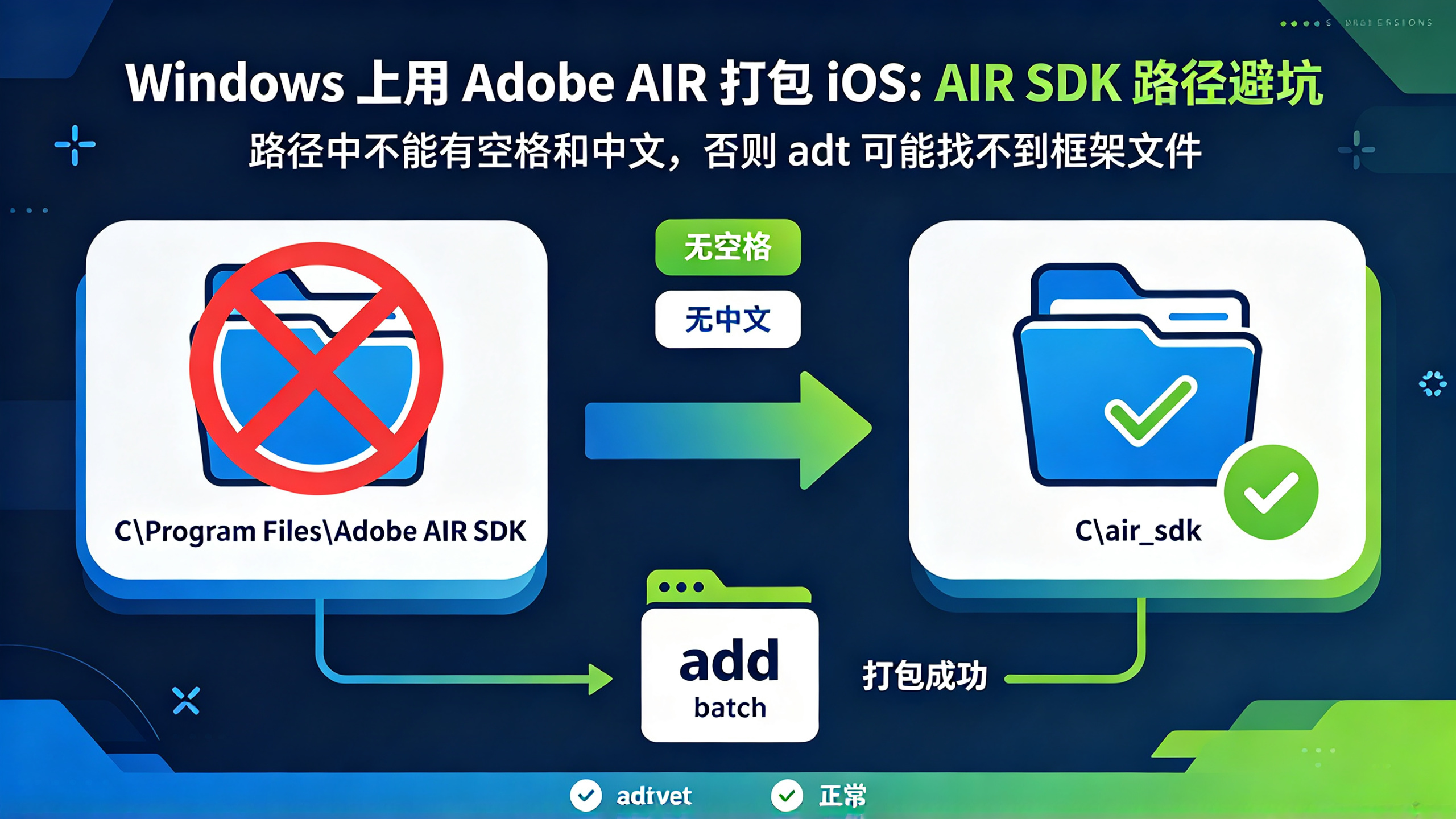
The Adobe AIR SDK 33.1.x (Windows version) is a zip package after download, and after extraction it contains directories such as bin, lib, and frameworks. You can put it anywhere, but the path must not contain spaces or Chinese characters. Do not underestimate this: I have seen colleagues put the SDK under the path C:\Program Files\Adobe AIR SDK, and as a result adt occasionally could not find framework files during packaging, and the error reported was "The system cannot find the path specified." It took a long time of troubleshooting to discover that spaces were the culprit.
My own habit is to always put it in C:\air_sdk—short, no spaces, easy to remember. Inside, bin\adt.bat